Nikolas
What Is Git? Version Control Explained for API Developers
Everyone has seen a folder like this:
- collection_export.json
- collection_export_final.json
- collection_export_final_v2.json
- collection_FINAL_use_this_one.json
If it's not a folder, it's a Slack thread. Someone exports an API collection, sends it to the team, someone else edits their copy, and two weeks later nobody knows which version matches production. The same disease that gave the world proposal_FINAL_reallyfinal.docx lives comfortably in API work too.
Git exists to kill that pattern. Git is a version control system: a tool that tracks changes to files over time, so you keep one project with a full, readable history instead of a pile of duplicated copies. That one sentence is most of what you need. The rest of this post unpacks it.
What Git is (and what it isn't)
Three words carry almost all of Git:
- Repository — your project folder plus its entire history.
- Commit — a saved checkpoint of the whole project, with a message explaining what changed.
- Branch — a parallel line of work, so you can change things without touching the main version.
One clarification that trips up nearly every beginner: Git is not GitHub.
Git is the tool. It runs on your machine and tracks history locally. GitHub, GitLab, and Bitbucket are hosting services: places to put a Git repository online so a team can share it. You can use Git your whole life without ever touching GitHub. You cannot use GitHub without Git.
Two more things Git is not:
- Git is not an auto-save. Until you commit, your work is not in Git's history. Edit all you want; nothing is recorded until you say so. That's a feature. It lets you experiment without polluting the timeline.
- A commit is not a tiny patch floating on its own. Git thinks in snapshots. Each commit is a saved version of the entire project at that moment. The history is a chain of those snapshots.
How a change travels through Git
The single biggest beginner hurdle: a change lives in more than one place before it becomes history. There are three areas.
- Working files — where you edit. Just normal files in a normal folder.
- Staging area — the changes you've marked for the next commit.
- Commit history — the saved timeline.
This is the whole reason git add exists. It's not bureaucracy. It's how you choose what goes into the next checkpoint. Think of the staging area as the box you're packing: you can keep making a mess in the room, but only what's in the box ships.
It also explains a classic confusion: you edit a file, commit, and the latest edit isn't there. You staged the earlier version, kept editing, and committed the stage — not the file on disk. Git did exactly what you asked. git status is the command that shows you, at any moment, what's changed and what's staged. Run it constantly. It's free.
Local vs. remote: pull, commit, push
Git is local-first. Your machine holds the project and its full history, and nearly every operation happens right there, offline. A remote is a copy of the repository hosted somewhere shared — GitHub, GitLab — that the team syncs with.
The core loop:
- git pull — bring the remote's latest changes into your local branch.
- git commit — save a checkpoint locally.
- git push — send your commits up to the remote.
Repeat forever.
A useful nuance: git fetch downloads what's new on the remote without changing your files, so you can look before merging. git pull fetches and merges in one step. When you're unsure what your teammates have done, fetch first.
And if a push ever gets rejected because the remote moved ahead of you: Git isn't broken, it's protecting work. It's asking you to pull, integrate, and push again.
Branches, merging, and why conflicts happen
Branches are Git's best idea. Instead of editing the main version directly, you create a branch — a safe parallel copy — do your work there, commit along the way, and merge it back when it's ready. Experiments stop being risky. A bad idea dies on its branch and main never knows.
Sometimes a merge produces a conflict: Git can't automatically decide how to combine two sets of edits, usually because the same lines changed in different ways on both sides. Three things worth knowing:
- Conflicts are normal.
- They are not a sign anything is broken.
- Git is just asking you, the human, to pick which version wins.
You'll also hear about rebase. It's useful later. It rewrites history, which makes it easy to confuse yourself early on. Merge first. Rebase when merge feels boring.
How teams collaborate with Git
Put branches and remotes together and you get Git's real payoff: many people working on one project without overwriting each other.
The rhythm is simple. Everyone pulls from the same remote. Each person does their work on their own branch. When a change is ready, it goes up as a pull request, a teammate reviews the diff, and it merges into main. Nobody waits for anyone. Nobody's edits silently clobber anyone else's. The history shows who changed what, when, and why.
One thing worth noticing: if your API collections are files in the repo, this is already how you collaborate on APIs too. A teammate updates an endpoint, you review it in the same pull request as the code, done. No separate cloud workspace to invite people into, no second set of accounts and permissions to manage, no wondering whether the shared collection matches what's in the repo. With Voiden this is the default, because .void files live in Git like everything else — collaboration happens where it already happens.
The beginner traps that actually matter
Git only tracks what you commit. Uncommitted work can be lost. If it was never committed, Git never had it.
.gitignore is not retroactive. Adding a file to .gitignore doesn't untrack a file that's already committed. Ignore secrets files before their first commit, not after.
Pushed history is durable. Once a commit reaches a shared remote, fully removing it is hard. That durability is the point — it's what makes recovery and collaboration possible — but it creates one hard rule: never push secrets. API work makes this trap sharper than most, because API collections are full of tokens, keys, and auth headers. If a credential does get committed and pushed, rotate it first. Cleaning the history is second. The token is already out.
This is also a place where tooling should help you by default. Voiden, for example, keeps its local-only runtime data in a hidden .voiden folder that's gitignored out of the box, and secrets live in environment files rather than inside the request definitions you commit. Guardrails, not magic.
Where your API collections fit into all this
Everything above assumed your files are, well, files. For code, they always were. For API collections, historically, they weren't — they lived inside a client's proprietary workspace or a cloud account, and "version control" meant exporting a JSON blob and emailing it around. Which is how we got collection_FINAL_use_this_one.json.
If your API client stores collections as plain files on disk, none of that ceremony is needed. In Voiden, requests, docs, and tests are plain Markdown .void files sitting in a folder. That folder can be a Git repository — the same repository as your source code, so the API definitions live next to the code that implements them, and get reviewed the same way.
You can work either way:
- The terminal. git init, git add, git commit, git push — everything in this post applies verbatim, because there's nothing proprietary in the way. The CLI docs cover the details.
- The built-in Git panel. Voiden ships a free Git GUI: initialize a repo with one click, review line-by-line diffs in unified or split view, stage, commit, pull, fetch, stash, undo the last commit, and create or compare branches — including diffing a feature branch against main before you merge. The GUI docs walk through all of it.
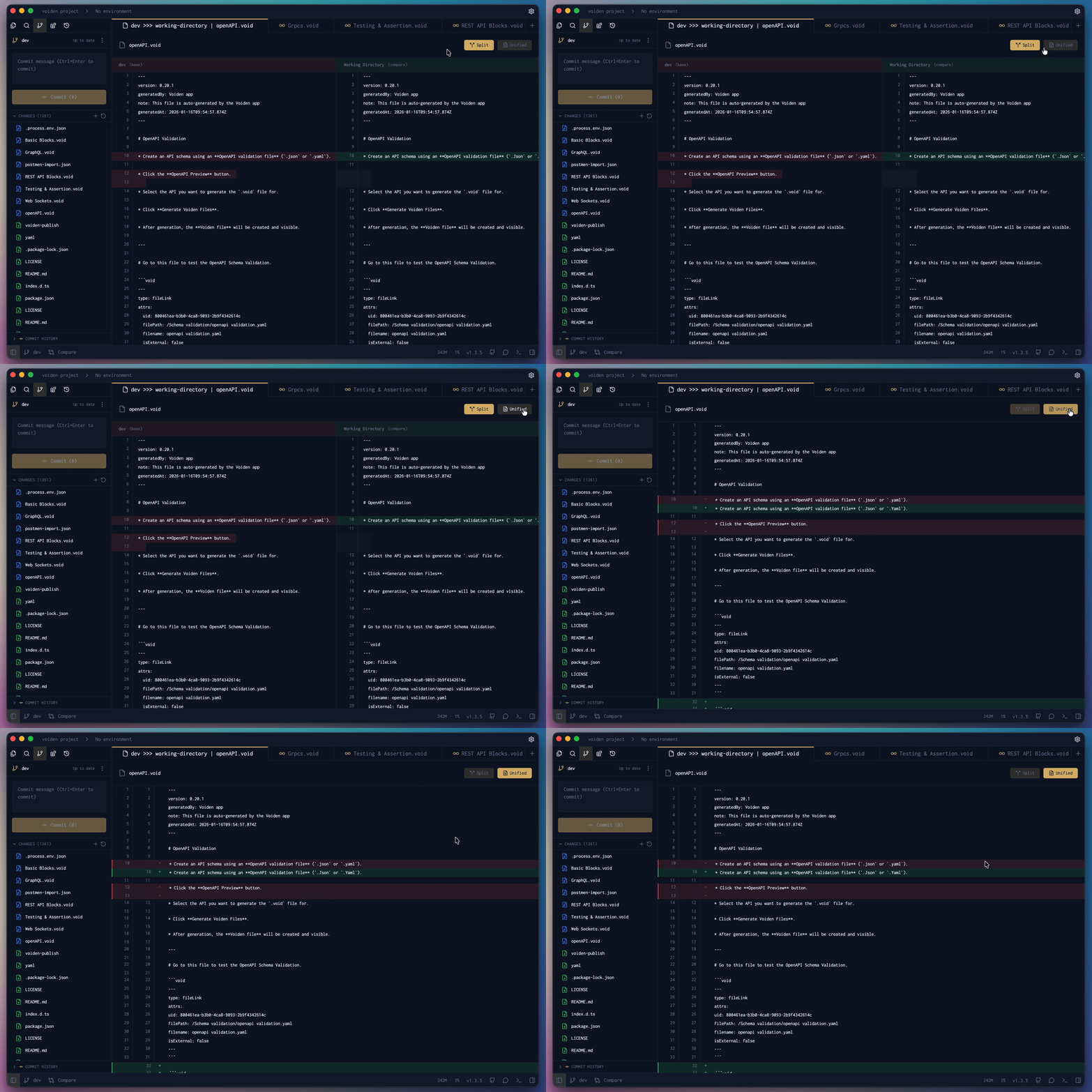
The GUI isn't a replacement for understanding Git. It's the same three areas — working files, staging, history — made visible. Green lines added, red lines removed, and you decide what ships. If you'd rather watch this than read it, there's a short video on Voiden's Git-native workflow.
A mental model to leave with
- Working files = what you're editing right now
- Staging area = what goes into the next checkpoint
- Commit history = the saved timeline
- Remote = the shared copy your team syncs with
- Branch = work safely in parallel; merge = bring it back together
- Pull request = propose a change, let a teammate review the diff, then merge
Your first 10 minutes with Git
The fastest way to make Git feel real is to run the loop once on something tiny:
git init
echo "My first tracked project" > README.md
git add README.md
git commit -m "Add initial README"

# Make one small edit, save a second checkpoint:
echo "Commits are snapshots" >> README.md
git add README.md
git commit -m "Update README"

git log --oneline
That's a repository, a change, a stage, and two commits — the entire lifecycle. Whether you type the commands, click through Voiden's Git panel, or use any other Git tool, the path a change takes is always the same. Understand the path, and the commands stop being spells.
You can download Voiden here, or poke around the repo — which is, naturally, just Git.
Related Posts
Phurpa Tsering
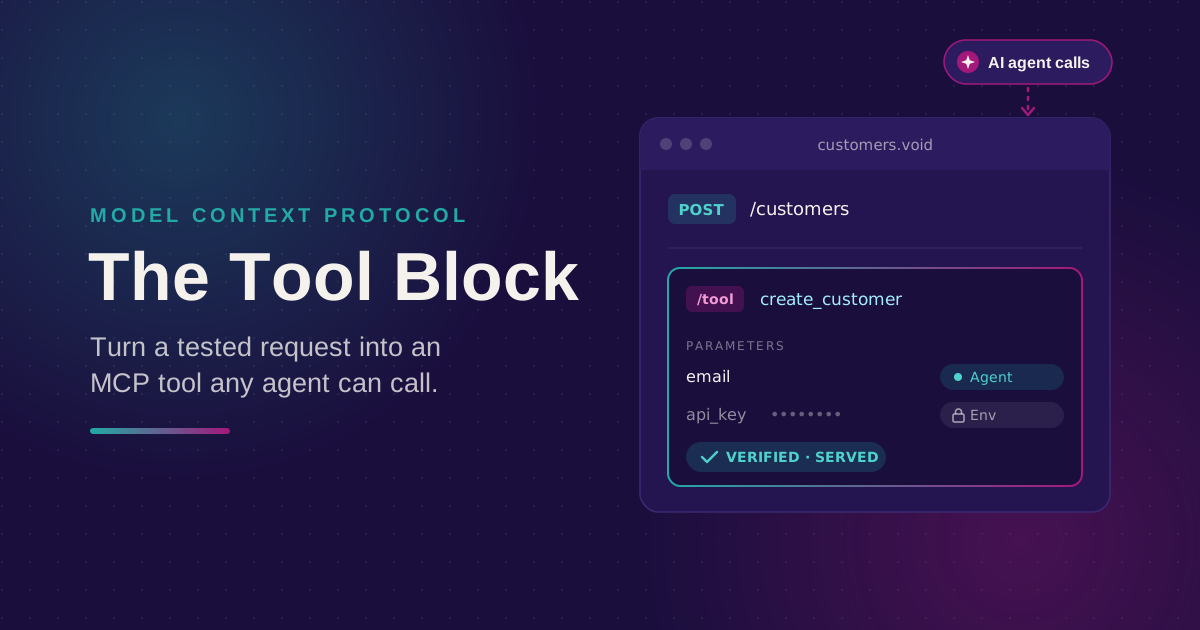
Turn Your Tested API Requests Into Agent-Callable MCP Tools
Turn a request you've already tested into an MCP tool that agents can call, then publish it with @voiden/mcp. Use stdio for local use, or --http/--tunnel for a server you can host.
Phurpa Tsering
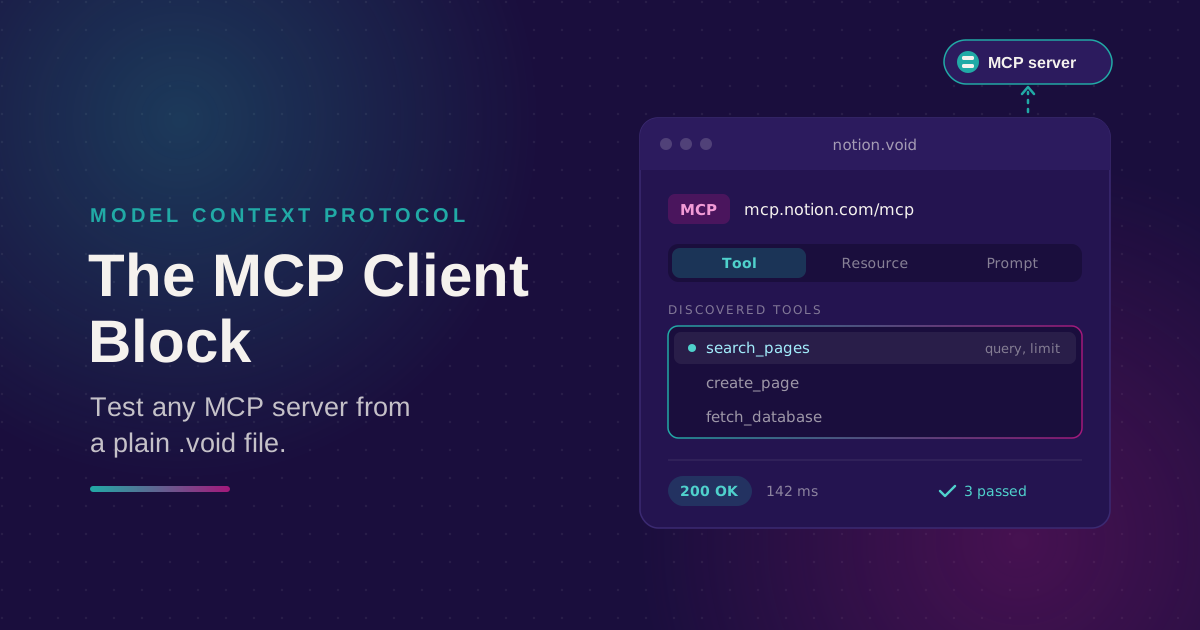
Bring Any MCP Server Into Your API Testing Workflow
Connect to any Streamable HTTP MCP server, browse its tools, resources, and prompts, and call one. Check the response with the same auth and assertion blocks you use for REST, all from a plain .void file.
Phurpa Tsering
Give Your Coding Agent Real Access to Your API Requests
One status-bar button (or one CLI command) registers your project with Claude Code or Codex over MCP, giving your coding agent the same six tools Voiden uses to list, run, and manage requests.