Phurpa Tsering
Bring Any MCP Server Into Your API Testing Workflow
MCP servers are showing up everywhere. Notion ships one, and so does Stripe. If you've built one yourself, you already know the next question: how do you test it? Not just "does it start," but "if I call this tool with these exact arguments, what do I get back, and is it what I expect?" Today the usual answer is the MCP Inspector in a browser tab that resets when you close it, or a one-off script that isn't tracked anywhere and can't be reviewed in a pull request.
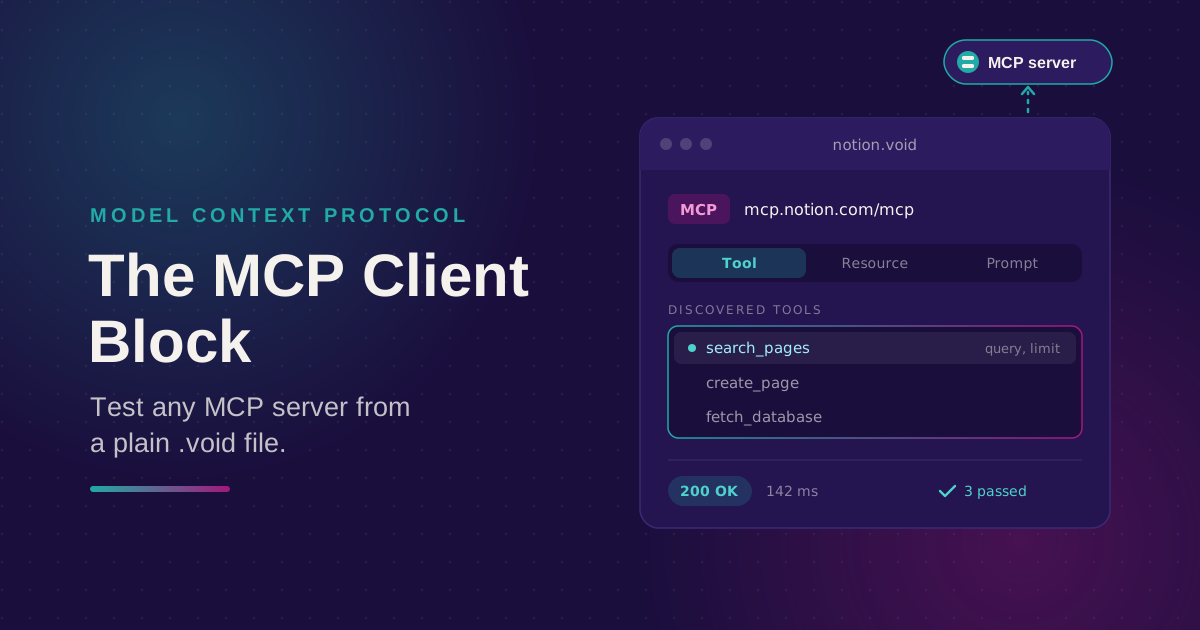
The MCP client block fixes this by turning an MCP call into a normal request. You point it at a server, pick something to call, and run it. The result is saved in a .void file next to all your other requests.
Two common ways to use it. Before each release, you rerun a saved call to confirm that your own server's search_orders tool still returns the expected shape. Or, before building on someone else's server, you explore it first. Point a block at Notion's MCP server, try a few tools, and keep the file as a working reference for your team.
The short version
- The MCP client block lets Voiden call an MCP server, the same way it already calls REST or GraphQL endpoints.
- One block covers all three things an MCP server can offer: tools, resources, and prompts.
- Once you paste in a URL, Voiden lists what the server offers. You pick from a list instead of guessing names.
- The result is a normal .void file. You can version it, diff it, and run it again, unlike an Inspector tab.
What it looks like
Type /mcp-client in a .void file and Voiden adds an MCP client block. It has two parts: a URL field for the server's address, and an operation picker below it.
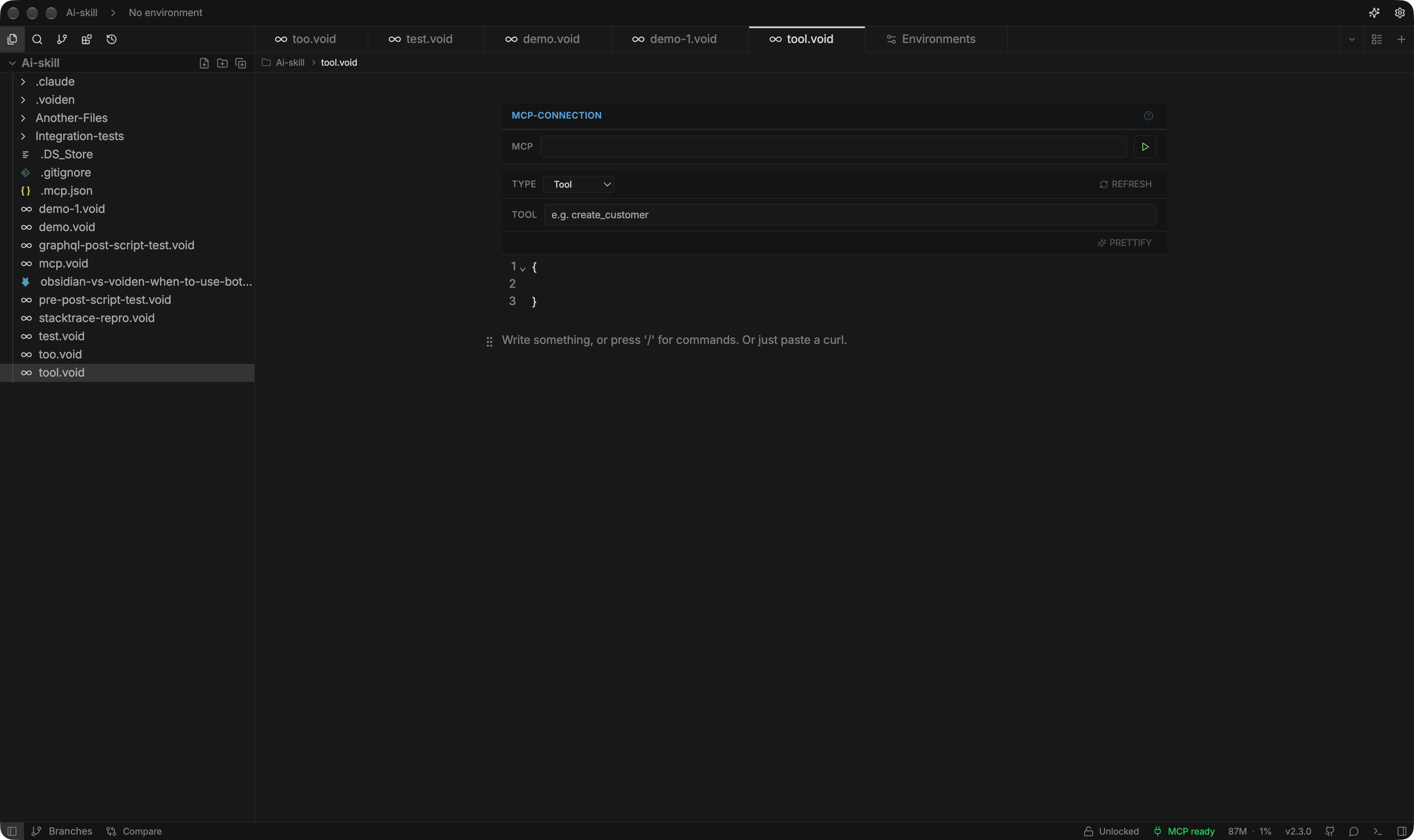
Paste in the server's address. It can be a remote URL, or a local one like http://localhost:3000/mcp if you're testing on your own machine. Voiden handles the connection for you, so there's no protocol setup to write. The block only needs to know where the server is.
Three capability types, one picker
MCP servers offer three kinds of things: tools, resources, and prompts. You don't need to learn three different blocks, because one picker handles all of them:
| Pick this | What happens | What you fill in |
|---|---|---|
| Tool | Calls the tool | Which tool, and its arguments |
| Resource | Reads the resource | Only the resource's URI, no arguments |
| Prompt | Fetches the prompt | Which prompt, and its arguments |
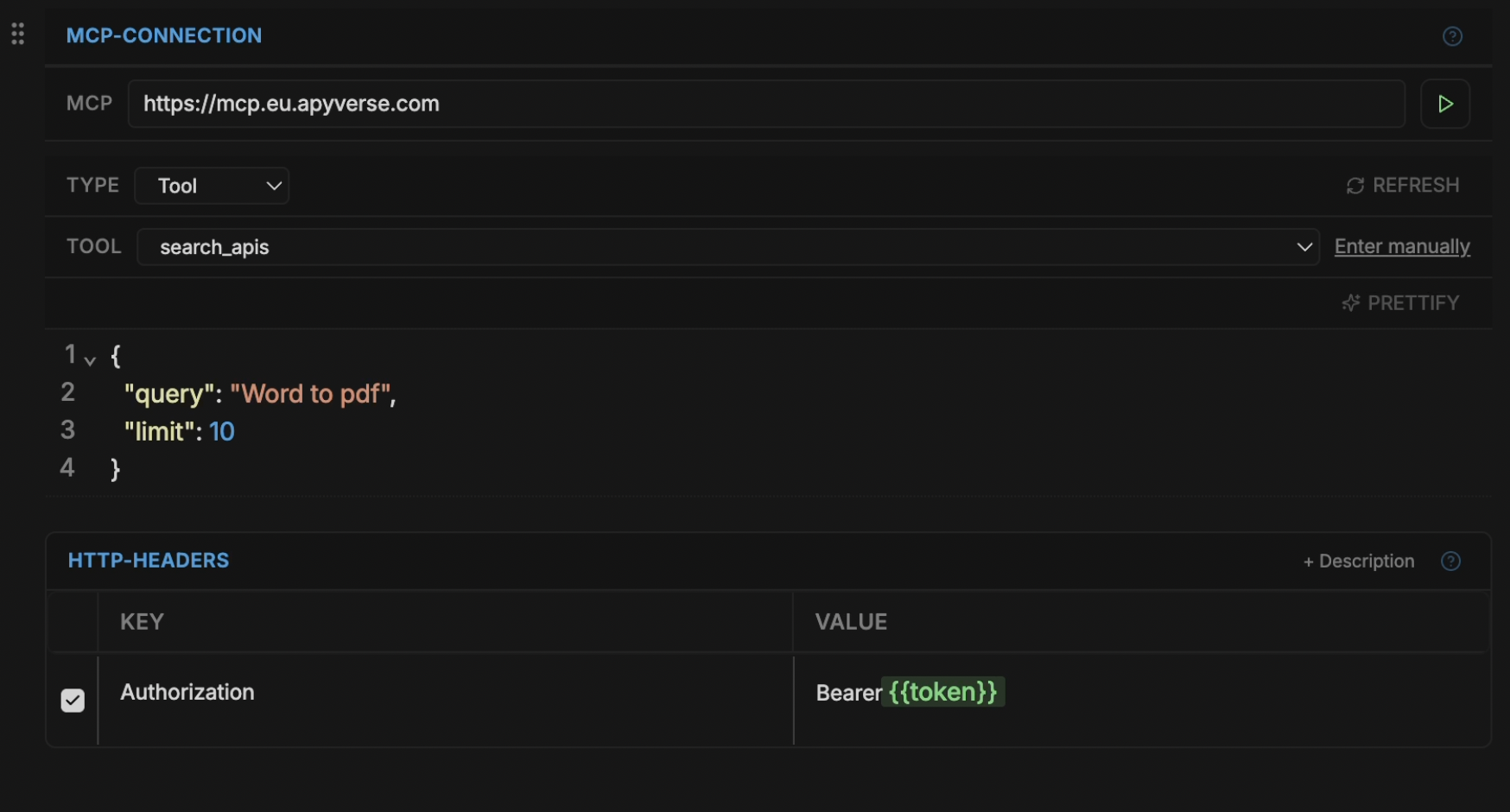
Choose Tool, and the fields below change to a tool name and an arguments box. Choose Resource, and they change to a single URI field. You only choose what you want to call. Voiden builds the right request for you.
Some servers expect extra values in the URL, like a tenant ID or an API version. You can add query or path params in the same section, just like on a REST request. Most MCP servers don't need this, but the option is there.
Autocomplete, not guesswork
This is where you save the most time. Once you fill in the URL, Voiden connects to the server and shows its tools, resources, and prompts in the picker. You don't need to know a tool's exact name. Pick one from the list, and its arguments appear as a form you can edit.
If you already know the name, you can type it directly instead. Both ways give you the same result.
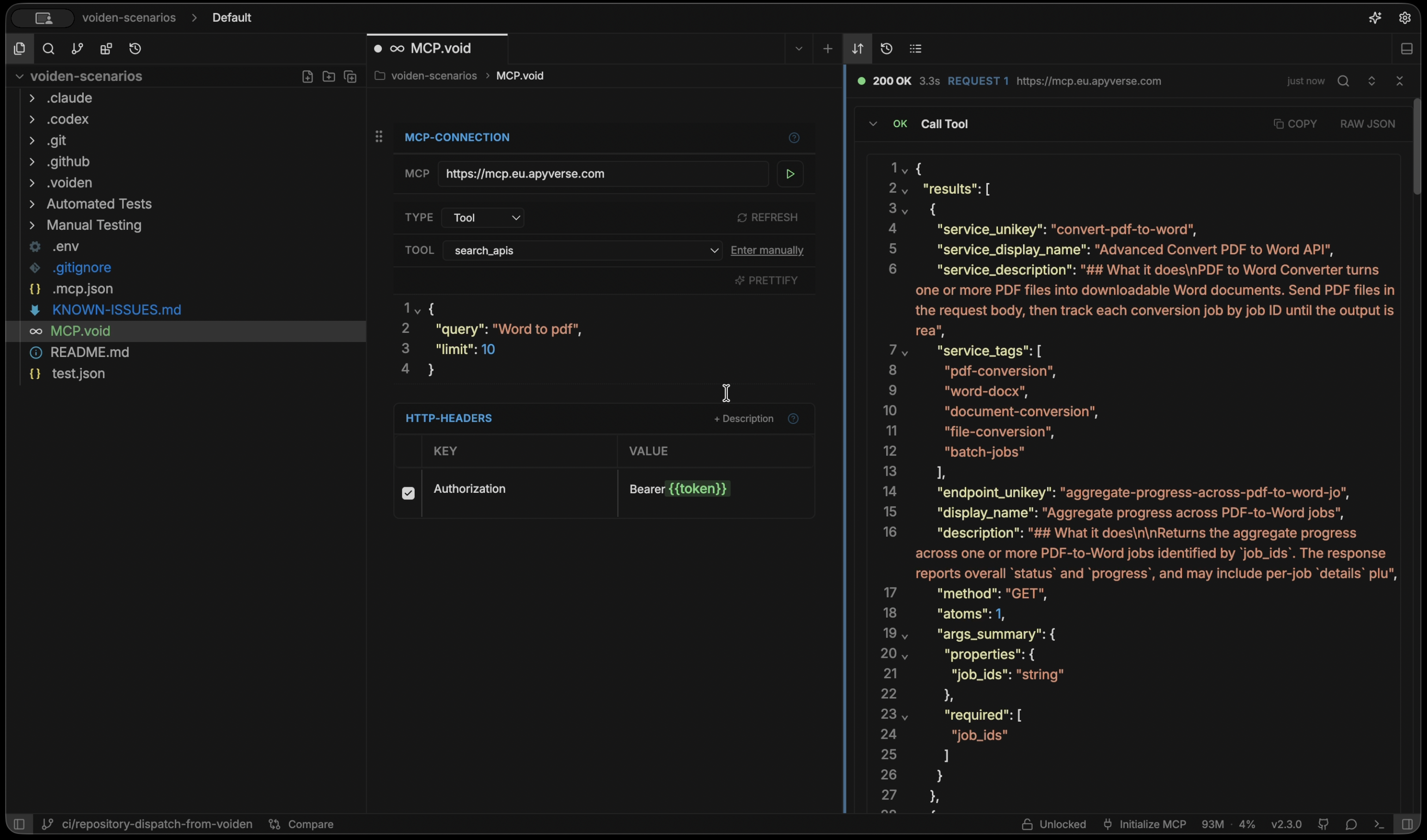
When you run it, the response appears in the block just like a REST response. Success or error, you can inspect it, add assertions to it, or share it with a teammate.
Authenticating to the server
Most hosted MCP servers need a bearer token or an API key. Add a Headers block in the same section, as you would for any REST request:
| Key | Value |
|---|---|
| Authorization | Bearer {{MCP_API_TOKEN}} |
{{MCP_API_TOKEN}} works like any other environment variable in Voiden, so the real token never gets saved in the file.
Pasting a config instead of typing one
Already have a server's config from Claude Desktop, Cursor, VS Code, or Windsurf? You don't need to retype it. Paste the JSON anywhere in a .void file:
{
  "mcpServers": {
    "notion": {
      "url": "https://mcp.notion.com/mcp",
      "headers": { "Authorization": "Bearer {{NOTION_TOKEN}}" }
    }
  }
}
Voiden recognizes the format and creates an MCP client block from it, with the URL and headers filled in. This also works with the --print-config output you get when publishing your own tool blocks as an MCP server. That means you can publish a server and then test it from the same place.
Why this beats a one-off Inspector session
The MCP Inspector is great for a first check: does the connection work, and does the server respond? But it falls short when you want to run the same calls after every deploy, or give a teammate a working example instead of written instructions. A browser tab that forgets everything when you close it isn't enough.
A .void file with an MCP client block is something you keep. It lives in Git, changes to its arguments show up in diffs, and running it again next week takes one keystroke, just like the first time.
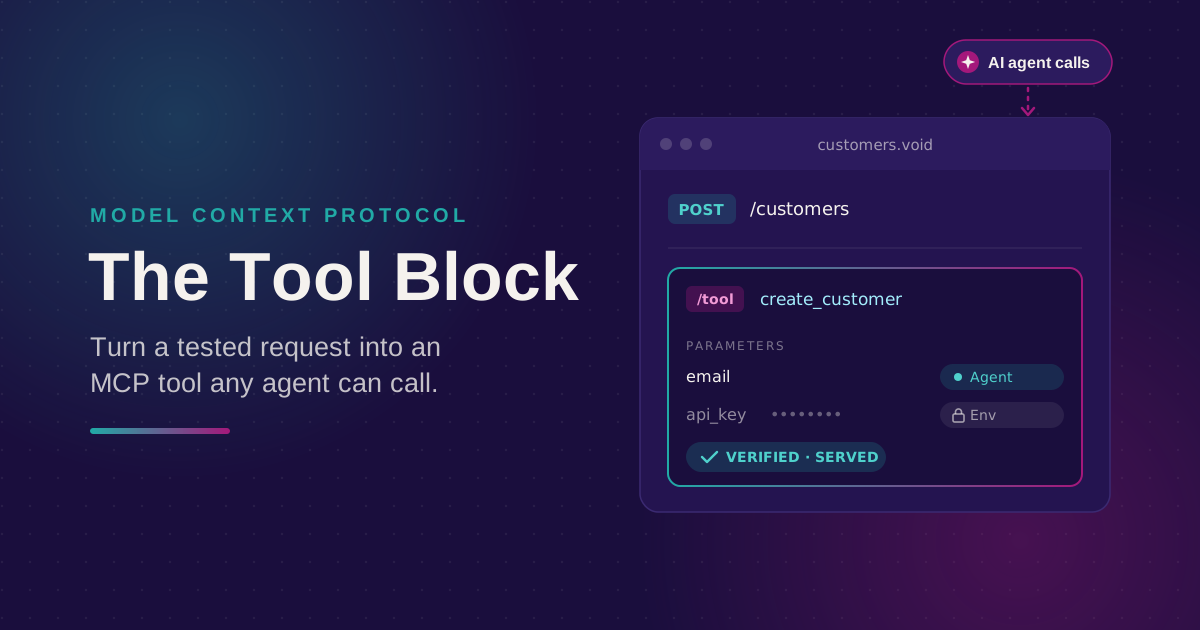
It's the opposite of the tool block. The tool block publishes your requests as MCP tools for someone else's agent to call. The MCP client block lets Voiden call someone else's server as one of your own requests.
Good to know
- Streamable HTTP only, for now. The block connects over Streamable HTTP. Servers that use the stdio transport, which you'd normally start as a local process, aren't supported yet.
- Pasting a config only imports the first server. If the config lists several servers, only the first one becomes a block, and only if it has a url field. Entries that start a local command ({"command": "npx", "args": [...]}) can't be imported, because local processes aren't supported. Voiden shows a message explaining why, so it won't fail silently.
Try it out
Type /mcp-client in a .void file and point it at an MCP server you have a token for:
- Open a .void file and type /mcp-client.
- Enter the URL of any Streamable HTTP MCP server. It can be your own, or a hosted one you have a token for.
- Once it connects, pick a tool from the list and run it.
- Save the file and commit it. You now have a versioned example you can run again anytime.
Voiden is open source under Apache 2.0.
Download: voiden.md/download
Source: github.com/VoidenHQ/voiden
Found a server this doesn't handle yet? GitHub Discussions
Related Posts
Phurpa Tsering
Turn Your Tested API Requests Into Agent-Callable MCP Tools
Turn a request you've already tested into an MCP tool that agents can call, then publish it with @voiden/mcp. Use stdio for local use, or --http/--tunnel for a server you can host.
Phurpa Tsering
Give Your Coding Agent Real Access to Your API Requests
One status-bar button (or one CLI command) registers your project with Claude Code or Codex over MCP, giving your coding agent the same six tools Voiden uses to list, run, and manage requests.
Nikolas Dimitroulakis
Voiden 2.3: Three Ways to Connect Your API to AI Agents
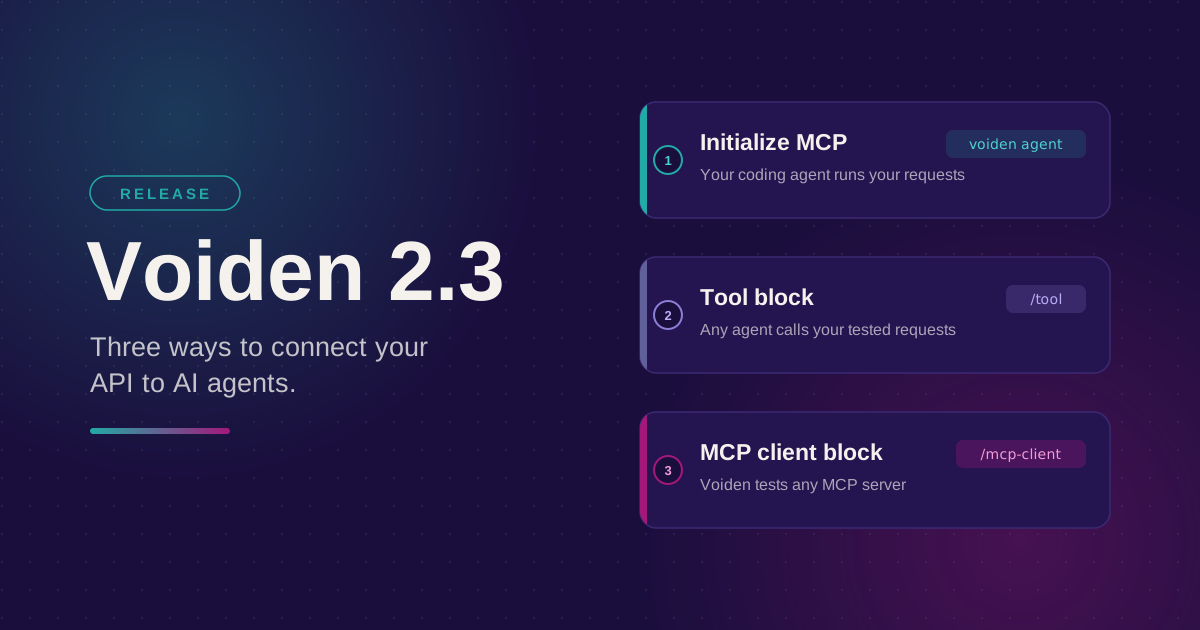
Initialize MCP, the tool block, and the MCP client block all involve MCP and all start with a .void file. Here's the short version of what each one is for and which one you actually want.