Phurpa Tsering
Turn Your Tested API Requests Into Agent-Callable MCP Tools
Say you've already built and tested a request in Voiden. It's a real POST /customers call with the right headers, a correct body, and maybe a few assertions on the response. Now you want an AI agent to be able to call it. You don't want the agent to read about it or guess its shape from an OpenAPI file. You want it to call the request with real arguments and get a real answer back.
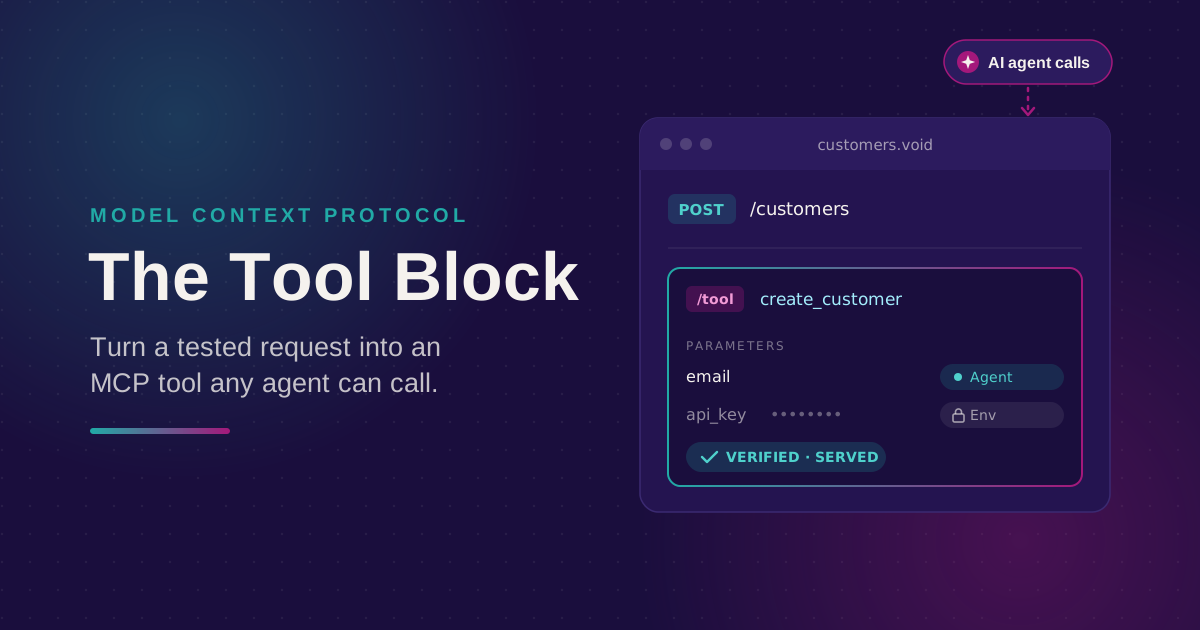
The tool block does exactly that. It turns a request you've already tested into a tool that an agent can call. The tool is only available while its tests are passing.
A concrete example. Your support team has an internal assistant, and you want it to issue refunds. You take the refund request you already have in Voiden, add a tool block to it, and say the agent can only set the order ID. Now the assistant can refund an order, and that's the only thing it can do. It can't touch any other request in your project, because you didn't mark any others.
The short version
- A tool block sits next to a request you've already built. It doesn't replace the request or create a new one.
- An agent can't call anything in your project until you add a tool block. Every other request stays hidden.
- You decide, field by field, what the agent fills in and what stays hidden from it, like an API key.
- The tool is only available if it passes a live test. If it breaks, it's hidden automatically.
The rest of this post covers each of these points.
A tool adds to a request. It doesn't replace it.
Type /tool in the same section as an existing request, and Voiden opens a form right there. It has a Name field (the name the agent uses to call it, like create_customer), a Title, a Description, and four toggles that match MCP's standard hints: read-only, destructive, idempotent, and open-world.
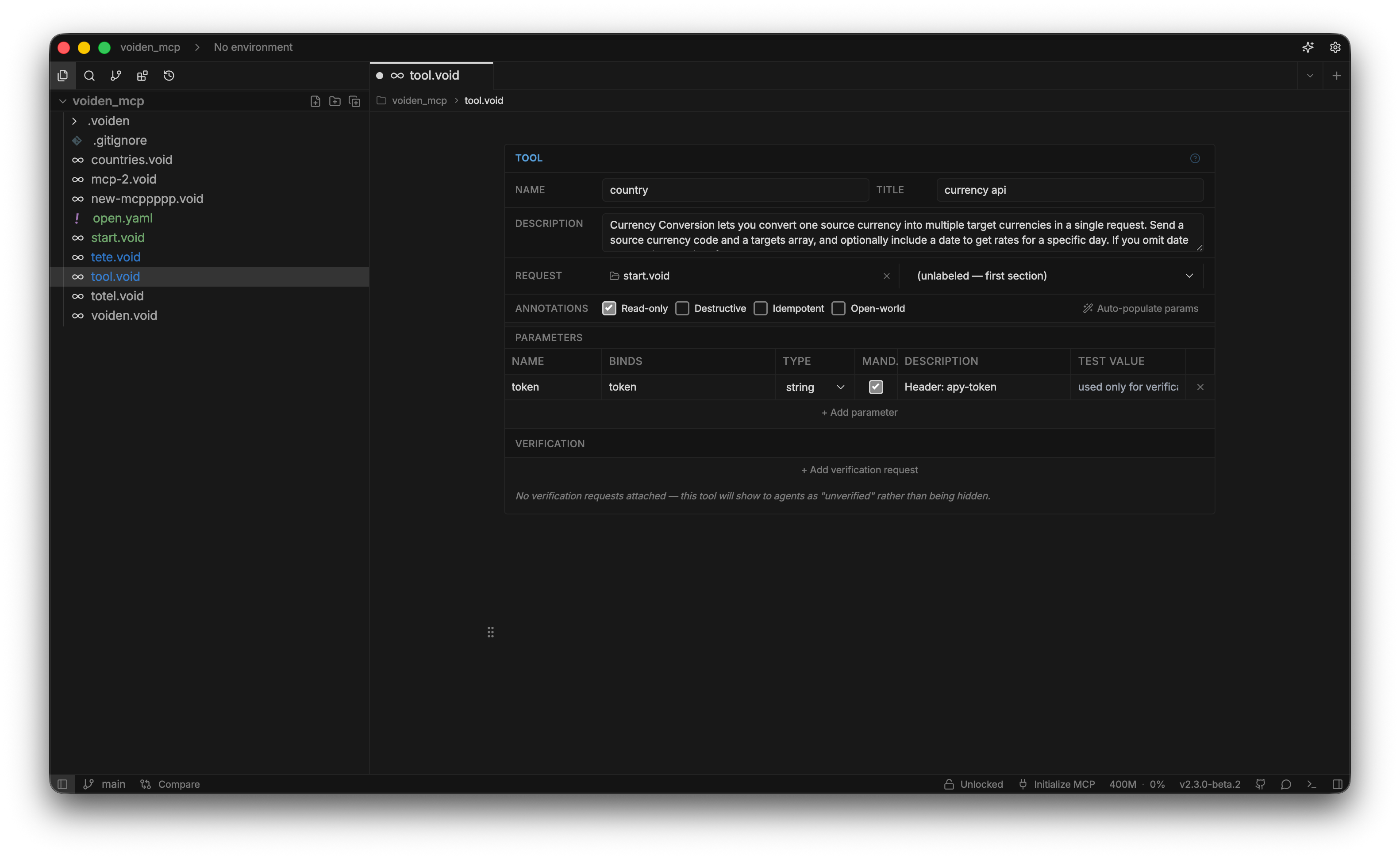
Two fields matter most. The Description is what the agent reads to decide whether and how to call the tool, so write it like a short piece of documentation, not a label. Treat the Name as permanent. Renaming it later breaks any agent that already uses the old name. It also has to be unique across all the tools your server offers.
The request itself keeps working as before, and you can still run it by hand whenever you like. The tool block just adds a second way to run it: through an agent, using values the agent provides.
Params: what the agent can set, and what it never sees
Most requests mix two kinds of values. Some should change on every call, like an email or a name. Others never should, like an API key or a fixed currency code. Below the tool's header, Voiden shows a Parameters table. Add one row for each value you want the agent to control:
| Name | Binds to | Type | Required | Source |
|---|---|---|---|---|
| {{customer_email}} | string | yes | Agent | |
| api_key | {{stripe_key}} | string | yes | Environment |
Two columns need a closer look.
Binds to is the exact {{placeholder}} in the request that this row controls. The placeholder can be in the URL, a header, or the body. Voiden doesn't match field names for you automatically, so you choose the exact spot yourself. If you point to a placeholder that doesn't exist in the request, the tool is flagged and won't be served.
Source decides who can see the value. If you set it to Agent, the agent fills in the value on every call and can see it. If you set it to Environment, Voiden fills in the value from your own settings, and the agent never sees it. This is where your API key goes. If you leave the source empty, it defaults to Environment. That way, a value never becomes visible to the agent just because someone forgot to set it.
Verification: only served while it works
A description only says what a tool is supposed to do. Verification proves it. It's a second table where each row points to a real request in your project. Voiden runs these requests as tests before the tool is made available.
| Section | Role | Cadence |
|---|---|---|
| Create customer: happy path | Happy path | Hourly |
| Create customer: invalid email | Error contract | Daily |
| Auth check | Auth check | Hourly |
Each row has a specific job:
- Auth check runs first, and the other rows depend on it. If auth fails, the other rows are skipped and reported as an auth failure. This way, a login problem isn't mistaken for a broken API.
- Happy path confirms that the normal case still works.
- Error contract confirms that an expected failure still behaves correctly. For example, a bad ID should still return a 404. A passing error contract is a good sign, not a problem.
- Cadence sets how often each row is re-tested once the tool is live. Each row runs on its own schedule.
One more setting controls what happens when a test fails. Withdraw (the default) hides the tool from the agent until it passes again. Advertise degraded keeps the tool visible but adds a warning to its description, so the agent knows to be careful. In both cases, the tool's status always comes from a fresh test, never an old result.
Serving it
Once you've defined a tool, @voiden/mcp turns it into a running MCP server. Start with:
npx @voiden/mcp . --check
This is a dry run. It finds every tool block, tests it, and reports whether each one is served, withdrawn, or excluded, along with the exact reason. It doesn't open a port. Use it whenever a server shows a different number of tools than you expected.
When you're ready to serve it for real:
npx @voiden/mcp . --http --tunnel --print-config
This starts a network endpoint and exposes it through a public cloudflared tunnel. You don't need a domain or an account, which helps on a machine without a public IP. Once it's live, it prints a config you can paste into Claude Desktop or Claude Code. You can also paste it into a .void file. Voiden recognizes it and turns it into an MCP client block, so you can test your own server the same way you'd test anyone else's.
Two more flags are available if you need them. Use --oauth for clients that require an OAuth login before connecting, such as claude.ai's connector settings. Use --api-key for a simpler shared-token setup. Both are optional. Without them, --http and --tunnel have no authentication, like any other unprotected local server.
Don't have the Voiden app, for example on a CI machine? voiden-runner runs the same find, test, and serve steps on its own. Use voiden-runner mcp serve, plus voiden-runner tool list and tool verify.
This isn't the same as letting your own agent run requests
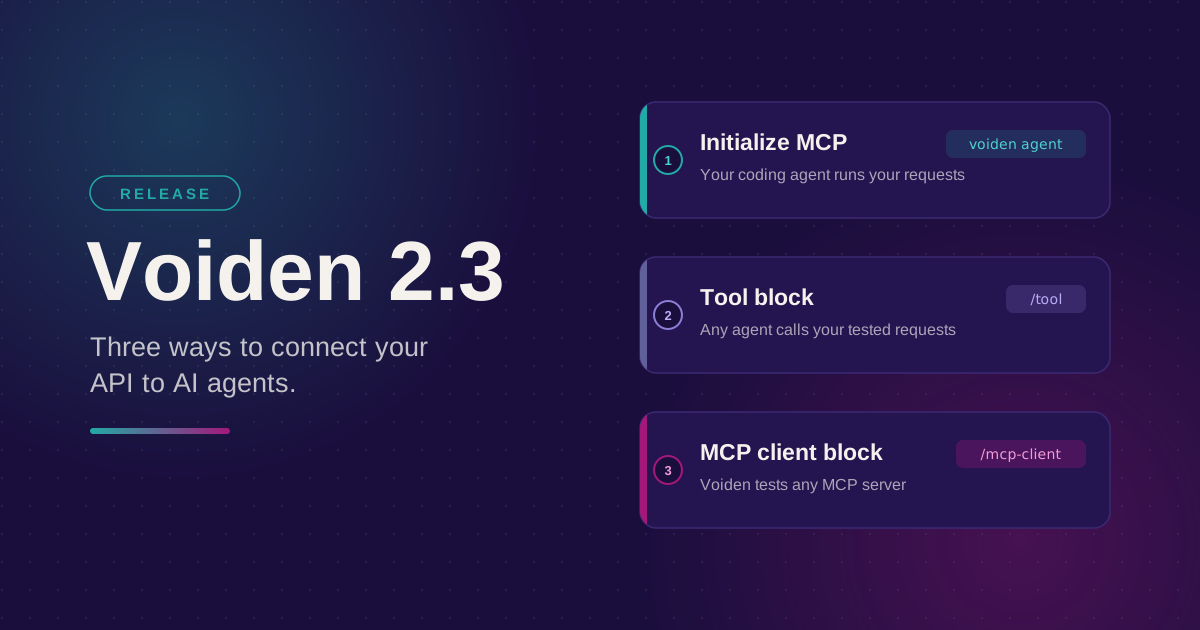
The names are easy to mix up, so here's the difference. Initialize MCP is a separate feature that lets your own coding agent run any request in your project. Everything is available by default there, because only you, your editor, and your agent are involved.
The tool block works the other way around. Nothing is shared until you choose to share it, because the agent calling it could be anyone's, possibly over the public internet. That calls for a more deliberate choice.
Try it out
Type /tool on a request you've already built and tested:
- Pick a request you've already built and tested in Voiden.
- Type /tool in the same section, and fill in a clear Name and Description.
- Add a Parameters row for each value the agent should control, and a Verification row that points to a happy-path test.
- Run npx @voiden/mcp . --check and confirm the tool shows as [SERVED].
- When you're ready to give it to an agent, run npx @voiden/mcp . --http --tunnel --print-config and paste the output into that agent's MCP config.
Voiden is open source under Apache 2.0.
Download: voiden.md/download
Source: github.com/VoidenHQ/voiden
Building something with this, or found a case it doesn't cover yet? GitHub Discussions
Related Posts
Phurpa Tsering
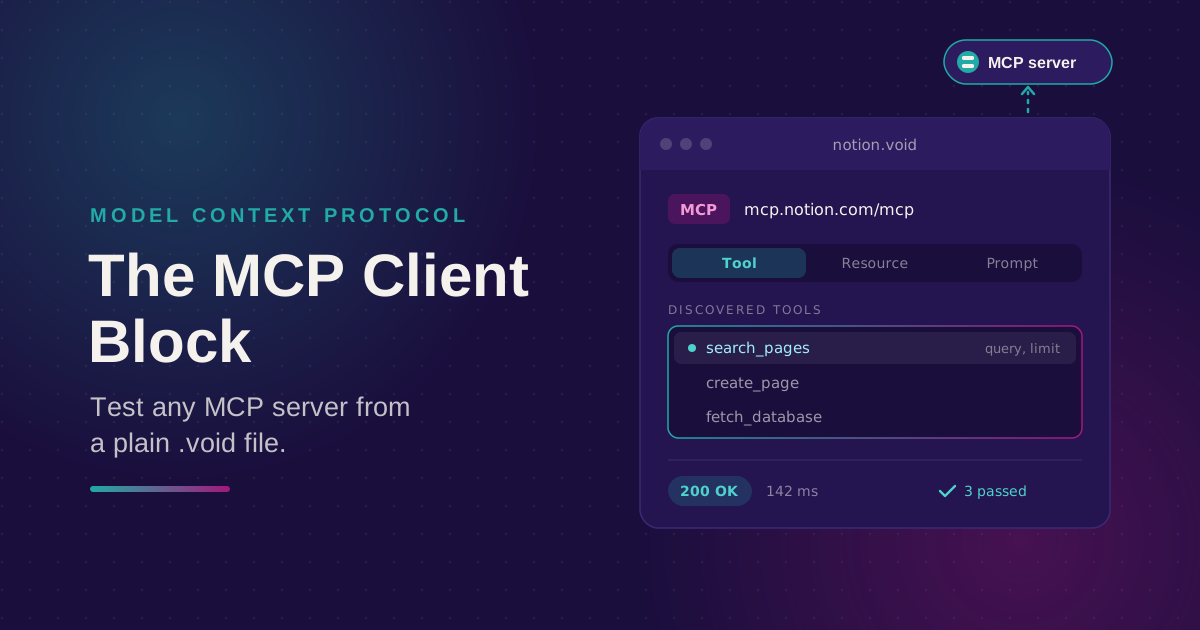
Bring Any MCP Server Into Your API Testing Workflow
Connect to any Streamable HTTP MCP server, browse its tools, resources, and prompts, and call one. Check the response with the same auth and assertion blocks you use for REST, all from a plain .void file.
Phurpa Tsering
Give Your Coding Agent Real Access to Your API Requests
One status-bar button (or one CLI command) registers your project with Claude Code or Codex over MCP, giving your coding agent the same six tools Voiden uses to list, run, and manage requests.
Nikolas Dimitroulakis
Voiden 2.3: Three Ways to Connect Your API to AI Agents
Initialize MCP, the tool block, and the MCP client block all involve MCP and all start with a .void file. Here's the short version of what each one is for and which one you actually want.